The following issue has been discovered in 6.70.50123 and can lead to massive or complete CAL table data loss.
It boils down to if a user completes a multi-user activity using the day calendar view or the Activity List for a day that has many calendar items then Goldmine creates a SQL query that is too general and ends up deleting too much calendar data.
Here is the specific issue logged as RM# 30822:
ISSUE_ID .... 30822
PRIORITY .... 1
SEVERITY .... 1-Critical
STATUS ...... 4-Open
SUBJECT ..... Data - Loss: Global Calendar completions
Multiple calendar records are earmarked for completion without regard to USER or RECTYPE
[BUILD]
6.70.50123, 6.70.50808
[OS]
n/a
[STEPS]
1. View Calendar, Day Tab
2. Create a 1hr Appointment for three different contacts
(e.g. Contact1 9-10, Contact2 10-11, etc.)
3. Create a 1hr Appointment for multiple users and a contact record *not* used in step 2
4. From calendar, right-click on appointment created in step 3., select complete option
5. Click OK
6. Click Yes to Alert
7. Right-click on an appointment created in step 2., select complete option
8. Click OK, Click Yes (should be in close succession)
[RESULTS]
All calendar records are completed with values from the multiple user activity.
[DISCUSSION]
Trace shows the following query:
SELECT RECID, RECTYPE, NUMBER1, CREATEBY FROM dbo.CAL (NOLOCK) WHERE RECID LIKE '%' ORDER BY RECID ASC
Same occurs when actions are performed from activity list window.
Observations:
A modal Complete window is launched when 'Complete' is the selected action from an Alarm window popup; this is not the case when 'Complete' is selected from the local menu option of the Pending Tab, Activity list or Calendar.
Development is working on a patch for 6.7 that corrects the issue.
Wednesday, November 30, 2005


Tuesday, November 15, 2005
iHEAT/iGoldMine and Windows Update 896424
This notification came through from Frontrange yesterday about the incompatability of iHEAT with Windows Update 896424
Please be advised that Windows Update 896424, released November 8 2005, is incompatible with iHEAT and iGoldMine on: Windows XP, Windows Server 2003, and Windows 2000 SP4 for all supported versions of iHEAT and iGoldMine. We will release compatibility update as soon as possible. This incompatibility only affects the iHEAT and/or iGoldMine Server and does not impact the Client machines.
FrontRange Solutions will release a compatibility update as soon as possible and we will send a second notification when the update is available.
Friday, November 11, 2005
Setting Up Knowledge Management in ITSM 5.04
The setup for Knowledge in Frontrange's ITSM 5.04 has a few tricks and traps here and there.
1. Initially you have to register the module in the Administrator. To do this select the Settings -> Module registration section. The DLL you need to add to register Knowledge is located under C:\Program Files\FrontRange Solutions\Service Management and is called Orion.Module.Knowledge.dll. Once you've added this module you need to exit the Administrator tool and restart IIS to ensure that the setting holds.
2. Once you have Registered the module you need to adjust the settings of the connection. To do this select the Settings -> Module registration section, select the Knowledge Management Module and click Settings. Here you need to fill in the following settings(see also the diagram below):-
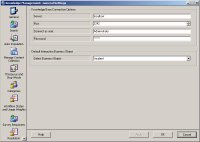
Server: [servername] (or localhost)
Port: 2242 (this is the default port)
Connect as User: Administrator (Note: this the default user for knowledge and is not an ITSM user or a Windows System user, This username is CASE-SENSITIVE)
Password: manage (This is the password created for the default knowledge user, again it's not controlled by ITSM or a Windows System account)
3. Finally the service needs to be configured to log on as an administrator account on this server. The Knowledge service will not run if the service is started as a System account.
Everything else from here is pretty straight forward.
1. Initially you have to register the module in the Administrator. To do this select the Settings -> Module registration section. The DLL you need to add to register Knowledge is located under C:\Program Files\FrontRange Solutions\Service Management and is called Orion.Module.Knowledge.dll. Once you've added this module you need to exit the Administrator tool and restart IIS to ensure that the setting holds.
2. Once you have Registered the module you need to adjust the settings of the connection. To do this select the Settings -> Module registration section, select the Knowledge Management Module and click Settings. Here you need to fill in the following settings(see also the diagram below):-

Server: [servername] (or localhost)
Port: 2242 (this is the default port)
Connect as User: Administrator (Note: this the default user for knowledge and is not an ITSM user or a Windows System user, This username is CASE-SENSITIVE)
Password: manage (This is the password created for the default knowledge user, again it's not controlled by ITSM or a Windows System account)
3. Finally the service needs to be configured to log on as an administrator account on this server. The Knowledge service will not run if the service is started as a System account.
Everything else from here is pretty straight forward.
Thursday, November 10, 2005
Dates from Heat in Crystal
Crystal Report Designer is a great reporting tool, but unfortunately the design of the HEAT database doesn't always make it as simple as possible to create reports. For example, dates in the HEAT database are held in string fields not standard date/time fields of the database you are using. This means that you need to convert the fields before they can be used with all the standard date functions in Crystal. There are two options you have for doing this : -
1. HEAT Crystal Functions
Shipped with installer for HEAT are a set of functions to allow you to do functions in Crystal that are specific to the HEAT system. One of these functions is HFWDateToDate. This function converts a HEAT date field into a Crystal Reports date field. For example if you wished to change the CallLog.RecvdDate the formula would be :
Often you want to use crystal reports on machines that may not have the Heat Functions installed. In this case it is necessary to convert the date using standard Crystal Functions. The problem that sometimes occurs with using the standard Crystal is when targeting a date that may not be filled in (for example CallLog.ClosedDate). This will cause a 'Bad Date String format' error. This can be solved by simply checking the field has a valid date format before converting the value. For example if you wished to change the CallLog.RecvdDate the formula would be :
1. HEAT Crystal Functions
Shipped with installer for HEAT are a set of functions to allow you to do functions in Crystal that are specific to the HEAT system. One of these functions is HFWDateToDate. This function converts a HEAT date field into a Crystal Reports date field. For example if you wished to change the CallLog.RecvdDate the formula would be :
HFWDateToDate({CallLog.RecvdDate})2. Standard Crystal Functions
Often you want to use crystal reports on machines that may not have the Heat Functions installed. In this case it is necessary to convert the date using standard Crystal Functions. The problem that sometimes occurs with using the standard Crystal is when targeting a date that may not be filled in (for example CallLog.ClosedDate). This will cause a 'Bad Date String format' error. This can be solved by simply checking the field has a valid date format before converting the value. For example if you wished to change the CallLog.RecvdDate the formula would be :
IF ISDATE({CallLog.RecvdDate}) THEN DATE({CallLog.RecvdDate})
Wednesday, November 09, 2005
Misleading Rights errors in HEAT/ITSM integration
This error occurs when trying to integrate one of the ITSM modules (to at least version 5.03) with an existing HEAT (version 8.36) implementation. When trying to access the module (in this case configuration) the user is presented with the error "You do not have rights to view inventory items". After inspection of their user account in HEAT and ITSM it is clear that the user has enough rights and has been created in ITSM with the correct role to allow access to this Module. The error is actually indicating that the passwords do not match between the HEAT and ITSM systems. For integration to work correctly the Users need to be created in both HEAT and ITSM with the same username and password.
Subscribe to:
Posts (Atom)